How to Record a Web App Walkthrough Your Client Can Actually Search
Learn how to record an interactive web app walkthrough that indexes both spoken narration and visible on-screen interactions so clients can search and jump to exact timestamps.
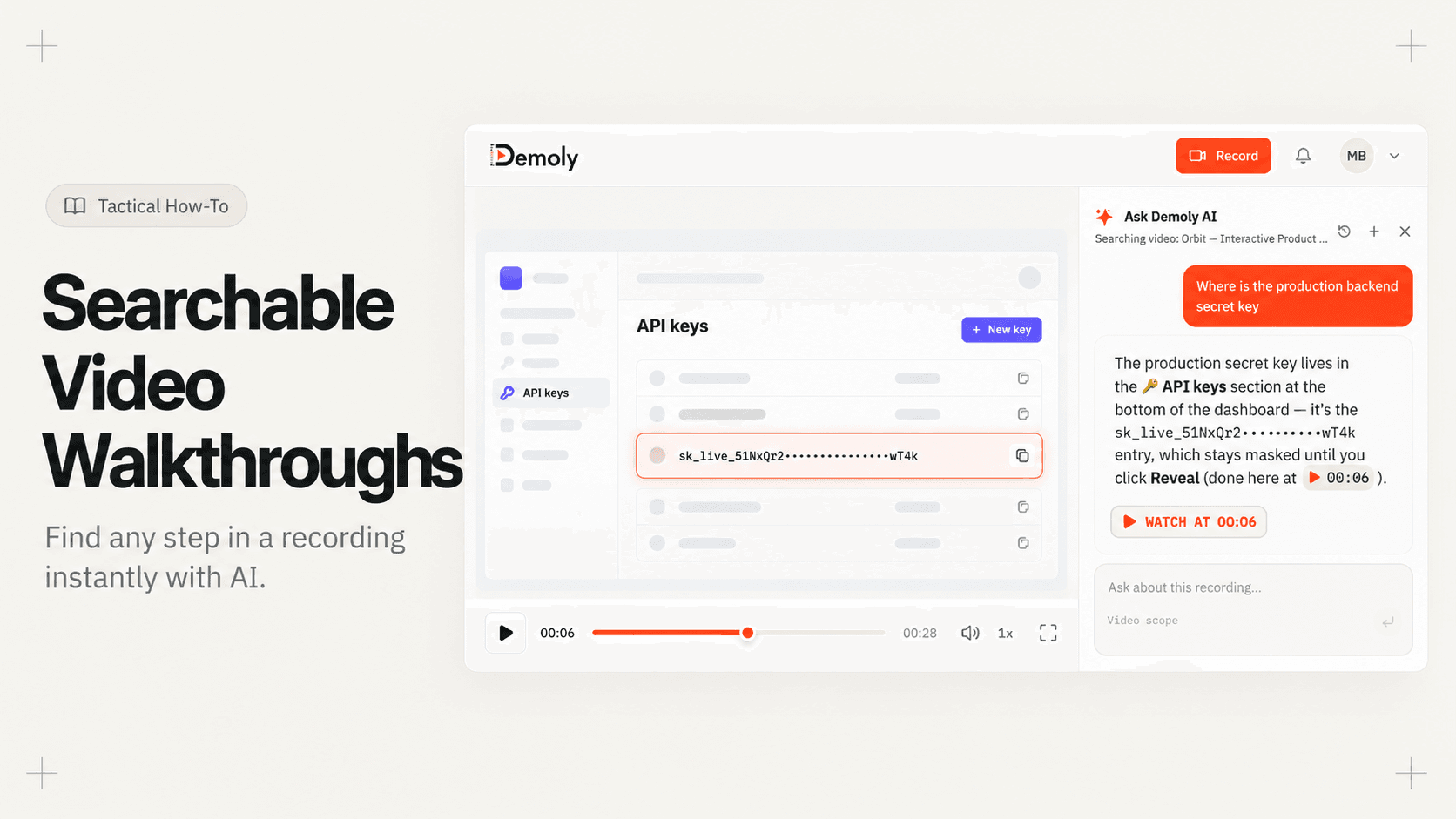
How to Record a Web App Walkthrough Your Client Can Actually Search
When you send a 15-minute product walkthrough, clients rarely rewatch the entire video to find a single setting. Instead, they ping you on Slack or schedule a follow-up call to ask where to click. Passive screen recordings leave critical workflow details buried across an unstructured timeline.
This guide shows you how to record a web app walkthrough that indexes both spoken narration and visible on-screen interactions. By the end, you will have a shareable link where clients can search for any button, form field, or settings tab and jump straight to the exact second it appears.
Quick Steps:
Launch the recorder: Open your target web application and activate Demoly from your browser extension bar.
Capture the workflow: Click through the required settings and features normally, with or without microphone voiceover.
Process the session: Stop recording to automatically index spoken audio, visible UI text, and on-screen clicks.
Test the search drawer: Type a keyword or natural-language query to confirm timestamped answer chips.
Copy the share link: Set viewer permissions to Viewer Only and distribute the URL to your client.
Before You Start
Install the browser extension: Add the Demoly Chrome extension to your browser toolbar.
Open the target application: Log into the web app you plan to demonstrate and keep it in an active browser tab. For client handovers, pair your recording with The Complete Client Handover Checklist for Web Agencies to confirm all access tokens and staging environments are staged.
Check audio inputs: If you plan to provide voice narration, verify your microphone input permissions in Chrome settings.
Step 1: Open the Extension and Select Your Capture Target
Navigate to the starting view of your web application. Click the Demoly icon in your browser extension toolbar to display the capture panel.
Choose your capture boundary based on your workflow scope. Select Current Tab if your entire walkthrough stays inside one web application. Choose Entire Screen if the demonstration requires switching between multiple desktop windows or third-party web apps. Verify that your microphone toggle is enabled if you plan to narrate steps aloud.
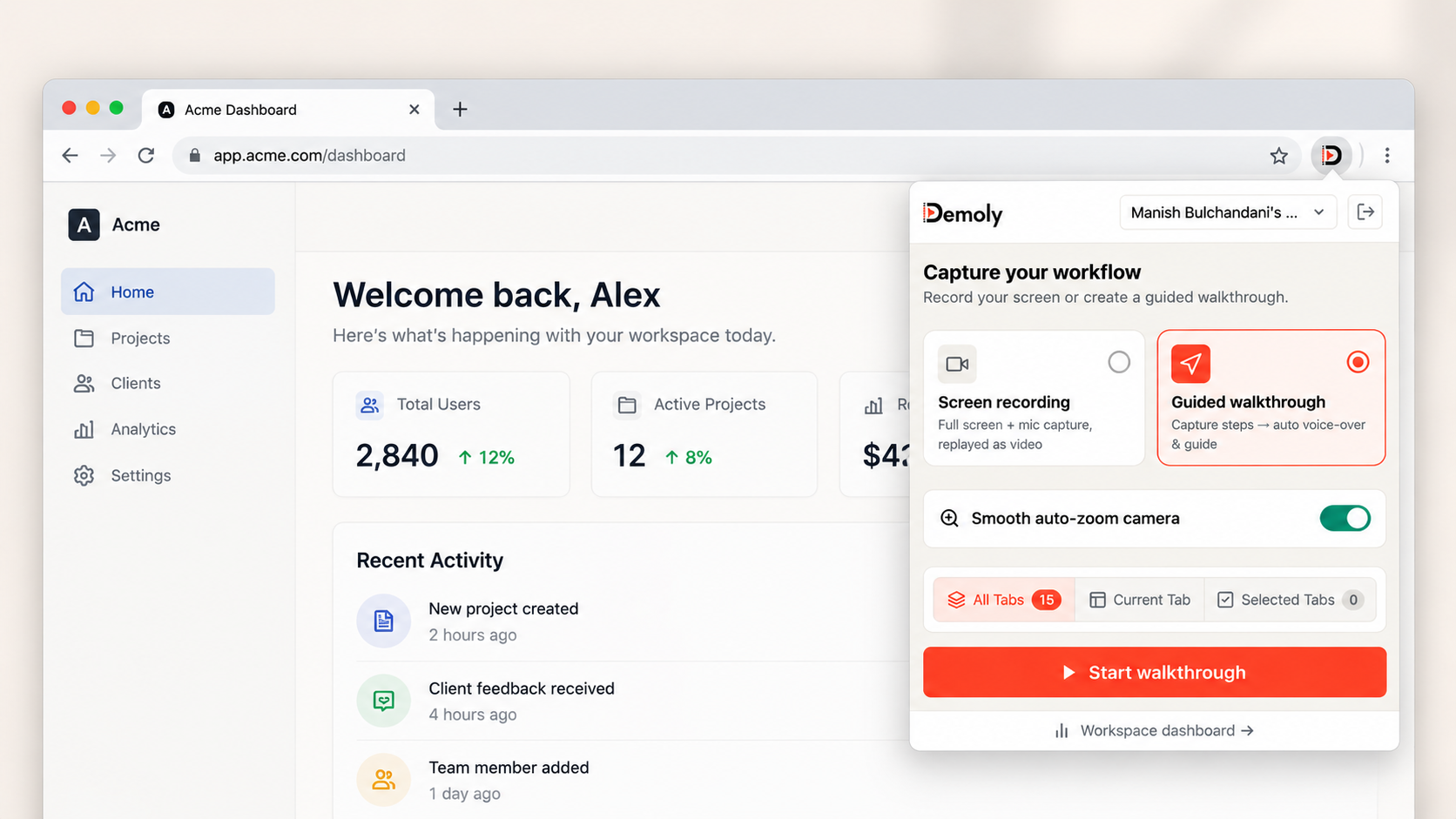
Demoly Chrome Extension - One-Click Screen Recording
Step 2: Record the Walkthrough Actions and On-Screen Steps
Click Start recording in the extension popup. A three-second countdown will display on your screen before capture begins.
Perform the workflow at your normal operating speed. Click buttons, open flyout menus, and navigate through the relevant settings panels. A minimal floating control bar will remain visible at the bottom of your screen to track your elapsed time and provide pause or cancel controls.
You do not need to narrate every button label aloud. Demoly indexes the text visible on the web page as you interact with it. If you navigate to an unvoiced setting like "Billing Settings" or "API Webhooks," the text remains searchable to the client later.
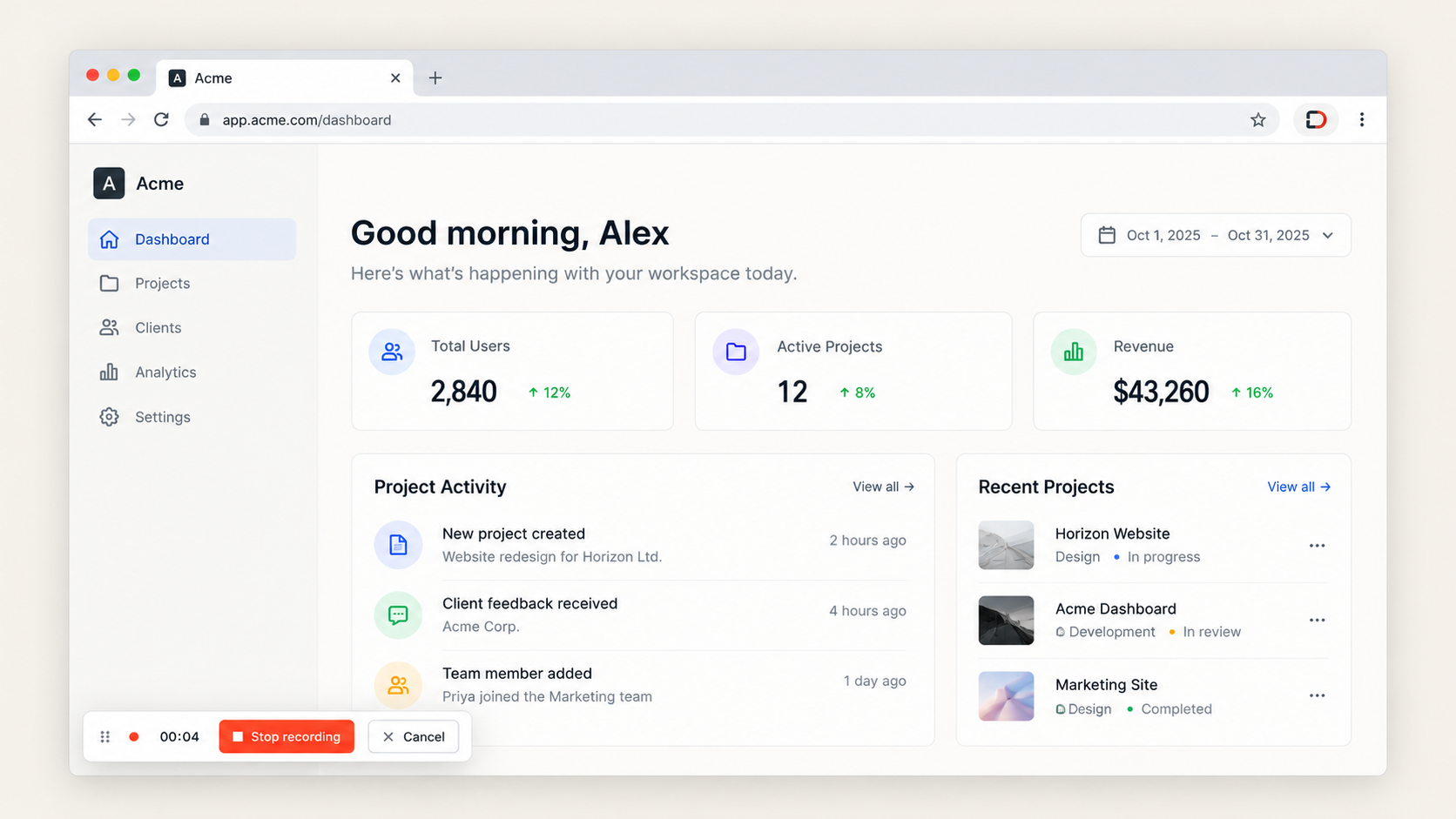
Demoly Floating Bar - Lightweight In-Recording Controls
Step 3: Complete Capture and Let Demoly Process the Index
Once you complete the final action of your walkthrough, click the Stop button on the floating control bar.
Demoly opens the recording in a new browser tab and processes the assets automatically. During this step, the engine creates the video playback stream, transcribes spoken audio, and maps on-screen UI elements and clicks into a searchable index. The complete in-browser studio workspace displays your media canvas along with timeline trimming tools in the lower panel.
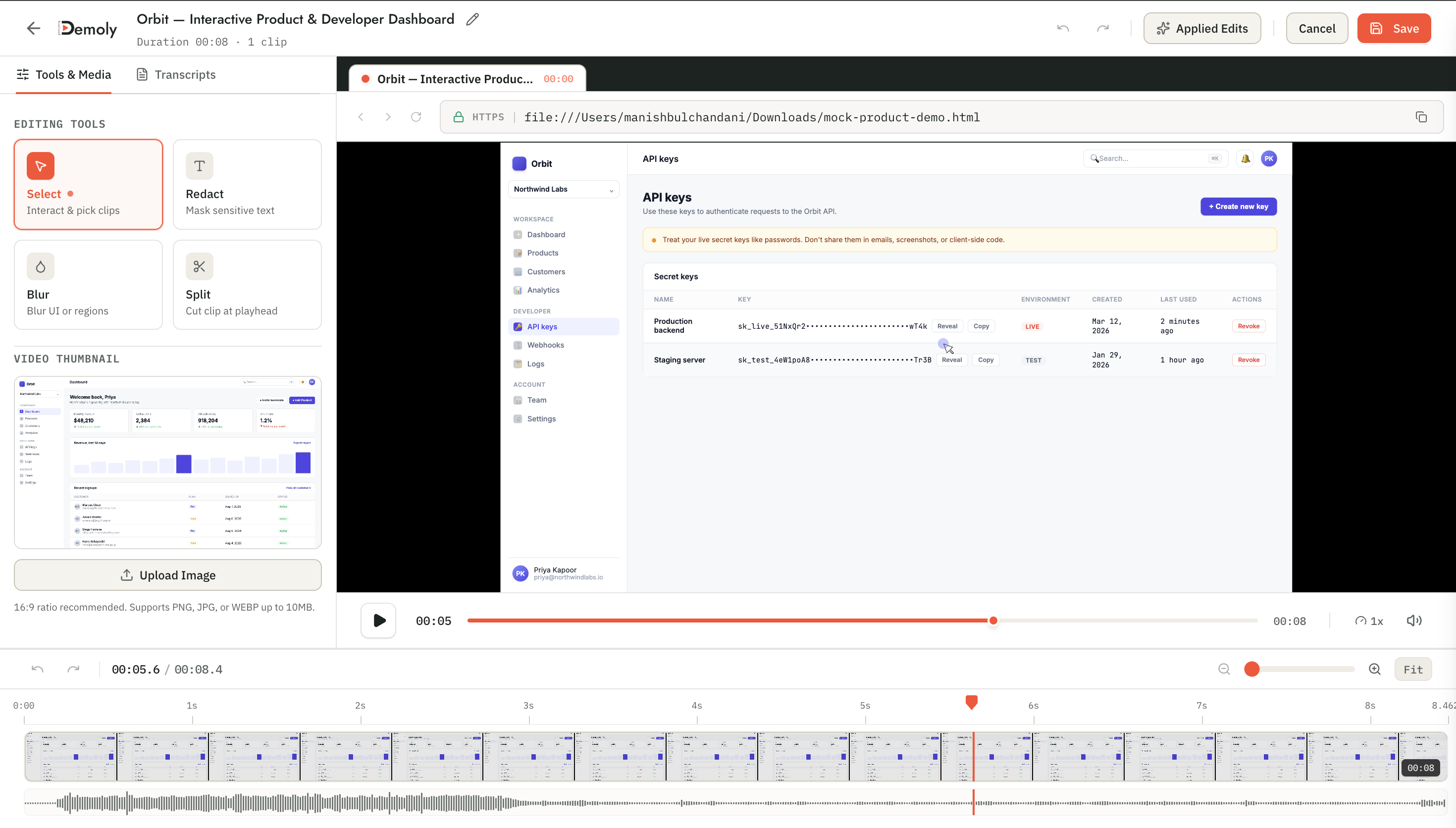
Demoly Web Editor - Full Studio Workspace
Step 4: Verify Searchability in the Ask Demoly Drawer
Before distributing the walkthrough, test search retrieval inside the editor workspace. Locate the Ask Demoly AI drawer on the right side of the video player.
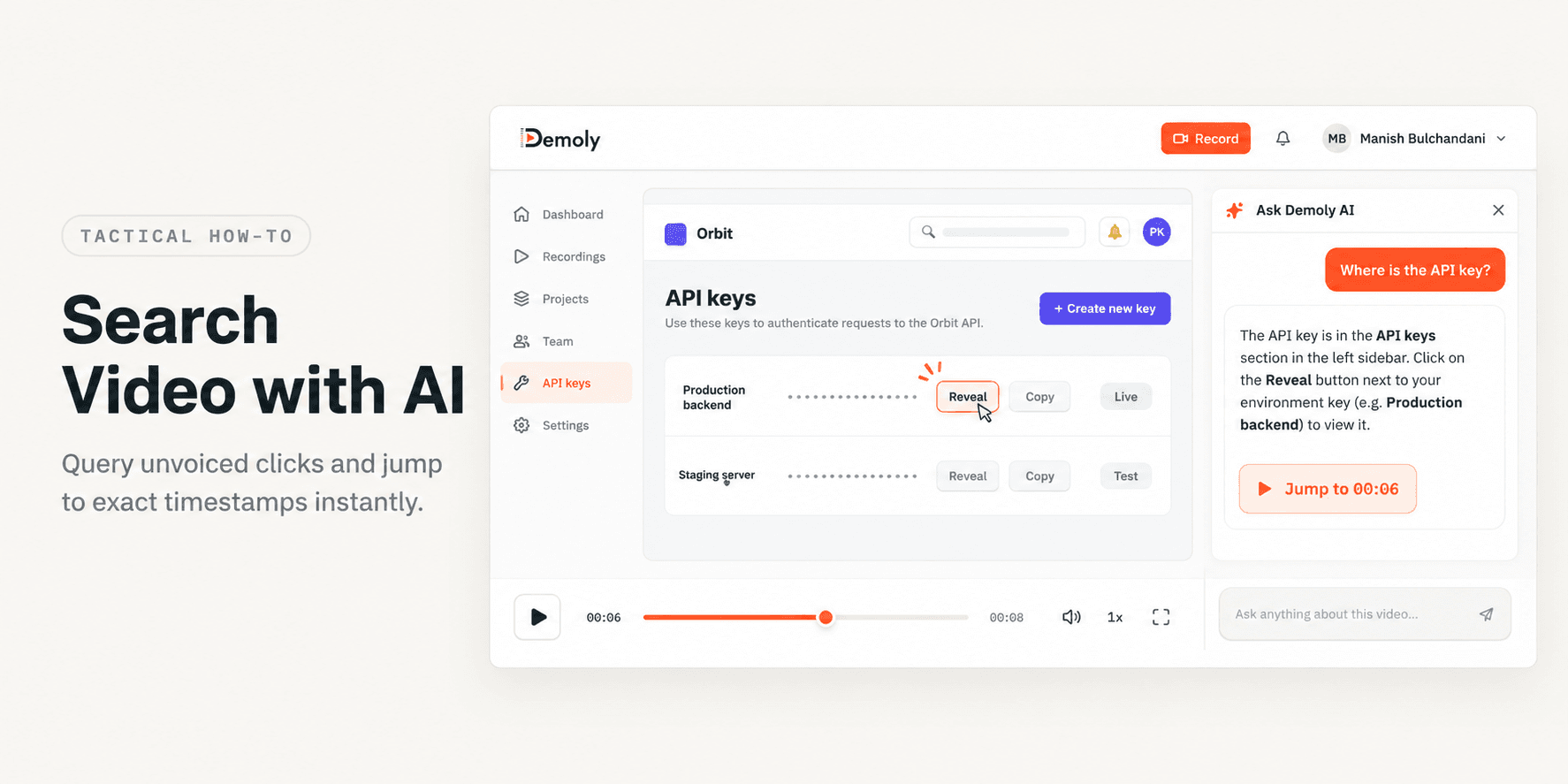
Type a word or phrase that appeared on screen during your recording, such as "API key" or "Production Webhook," into the query input. The drawer returns a direct answer accompanied by a clickable timestamp chip (such as WATCH AT 00:06). Click the citation chip to verify that the video playhead jumps directly to the exact second that element appeared.
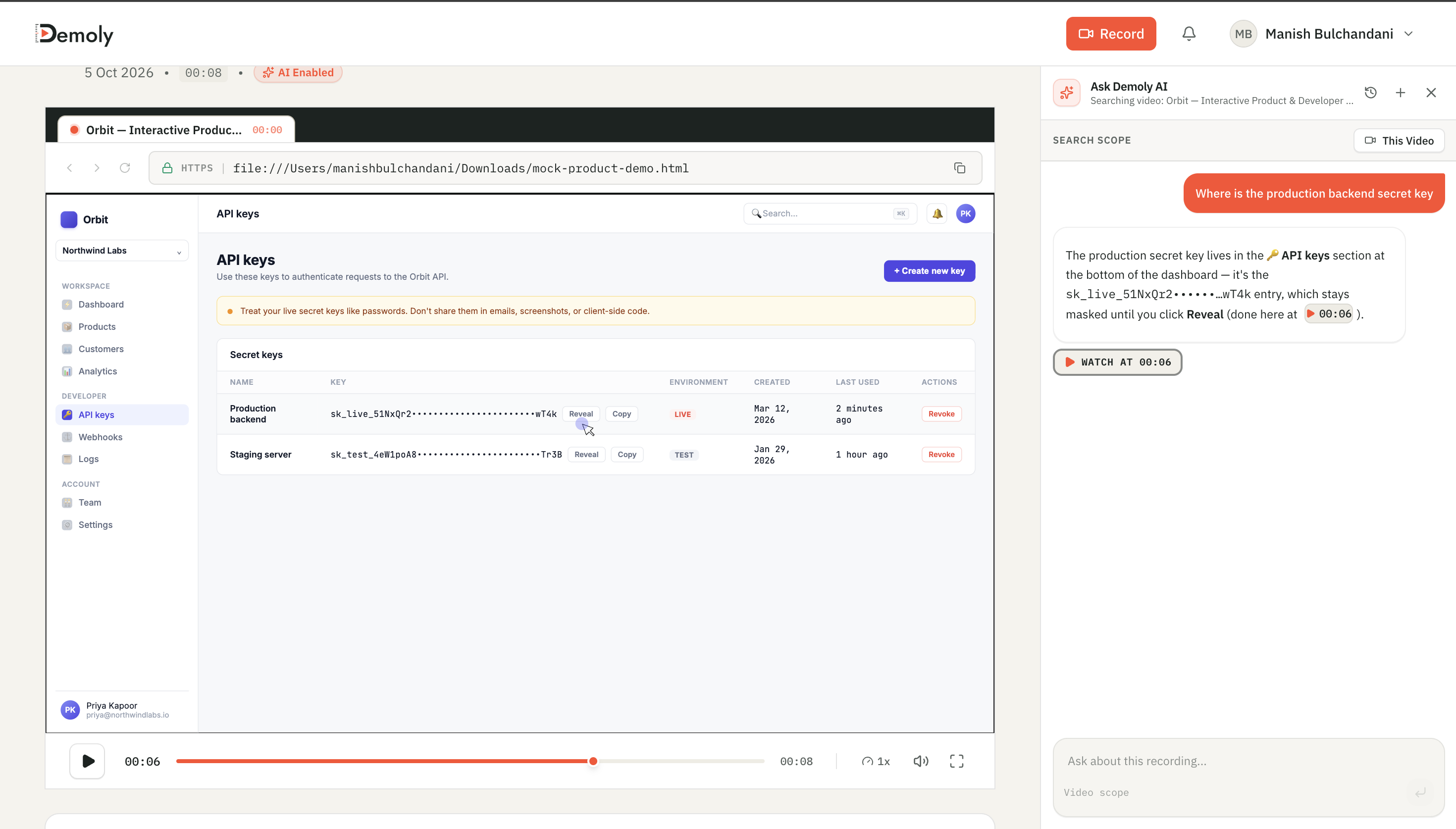
Ask Demoly AI - Natural Language Semantic Video Search
Step 5: Configure Permissions and Copy the Share Link
Click the Share button in the top-right corner of the editor canvas to open the distribution modal.
Set the permissions dropdown to Viewer Only. This allows your client to watch the recording, search on-screen elements, and leave element-pinned comments without editing your source timeline or trims. Click Copy Link to copy the public URL to your clipboard.
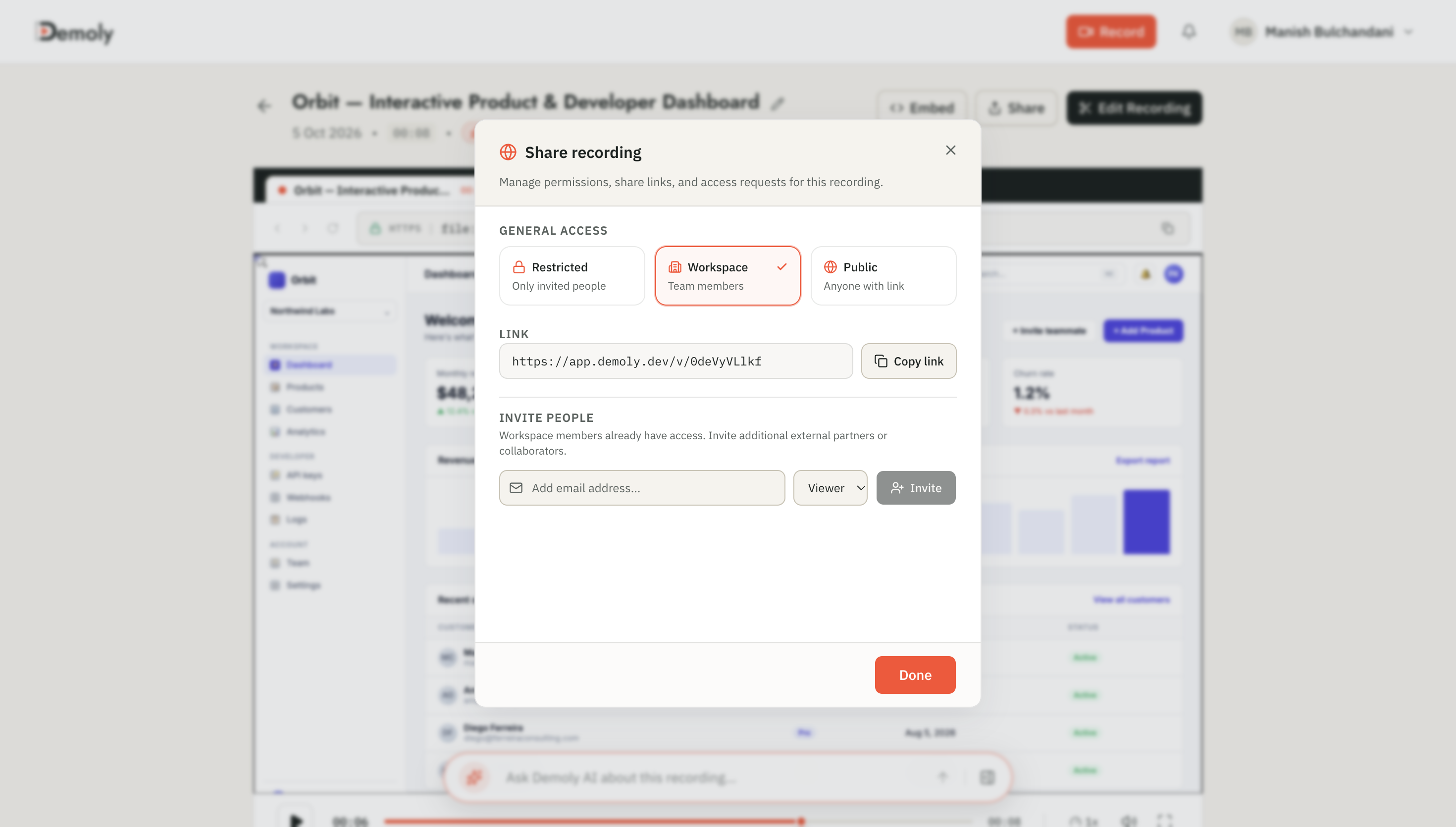
Demoly Share Modal - Zero-Friction Public & Client Access
How to Verify It Worked
Confirm the recipient experience before sending the link to your client:
Open a new incognito or private browser window.
Paste the copied walkthrough URL into the address bar and press Enter.
Verify that the video player loads immediately without prompting for an account creation, login screen, or software download.
Submit a sample query in the right-hand search drawer to ensure timestamp jump chips work as expected.
What the Client Sees and How They Search
When your client opens the walkthrough link, they interact with the player through two search modalities:
Natural Language Queries: The client can type full operational questions into the search bar, such as "Where do I invite team members?" or "How do I change notification webhooks?" The player returns a direct answer with a clickable timestamp citation.
Exact Keyword Matching: The client can type exact UI labels (like "Stripe Secret Key" or "Export CSV"). The player identifies every timestamp where that label was displayed or clicked on screen.
Clicking any returned timestamp jumps the playhead to that exact second, allowing clients to resolve their questions without watching the full video.
Important Notes & Edge Cases
Dynamic Menus and Flyouts: When demonstrating features located inside dropdown menus or slide-over drawers, pause for at least one full second while the panel is visible so the DOM elements index cleanly.
Sensitive Credentials: If your walkthrough displays production secrets, credentials, or client PII, use Demoly's canvas redaction tool in the editor to apply a permanent visual blur over the element before generating the share link.
Silent Walkthroughs: Microphone narration is completely optional. If you record in a shared office or noisy setting without voiceover, clients can still search through every visual action, button label, and navigation route.
Troubleshooting
Problem: Microphone audio did not record during the walkthrough.
Fix: Click the Chrome padlock icon in the browser address bar, ensure microphone permissions are set to Allow, and restart the recording from the extension.
Problem: The search drawer returns no results for a specific UI button.
Fix: Confirm that the button or text was visible on screen during the recording. If the element was hidden inside an unopened menu, re-record that brief navigation sequence or type the term into a video comment pin.
Practical Next Steps
Your searchable walkthrough is ready to deliver to your client, eliminating repetitive handover meetings and ad-hoc Slack interruptions. Demoly provides full screen capture, automated visual indexing, and zero-login link sharing on its free plan ($0 forever, no credit card required).
Frequently asked questions
Commonly asked questions about this article.
01•Does my client need a Demoly account to search the video?
No. Clients can open the share link in any standard web browser, watch the video, and search using the AI drawer without signing up or logging in.
02•What if I forgot to speak a button label aloud during recording?
The walkthrough remains fully searchable. Demoly reads and indexes visible on-screen text and DOM elements, allowing clients to search for labels that were never mentioned verbally.
03•Can clients download the walkthrough file directly?
By default, walkthroughs play inside the web player to preserve interactive search and timestamp navigation. You can enable or disable direct MP4 file downloads inside the Share modal settings.
04•How long does it take for a walkthrough to process and become searchable?
Processing typically finishes in under 30 to 60 seconds for a five-minute recording. The search drawer activates as soon as playback is ready.
05•Can I trim mistakes out of the video without breaking search timestamps?
Yes. Trimming unwanted sections in the in-browser timeline automatically updates the video playback stream and realigns all search timestamps to match your edited cut.
Demoly Team
Contributor
Related Dispatches
View all dispatches →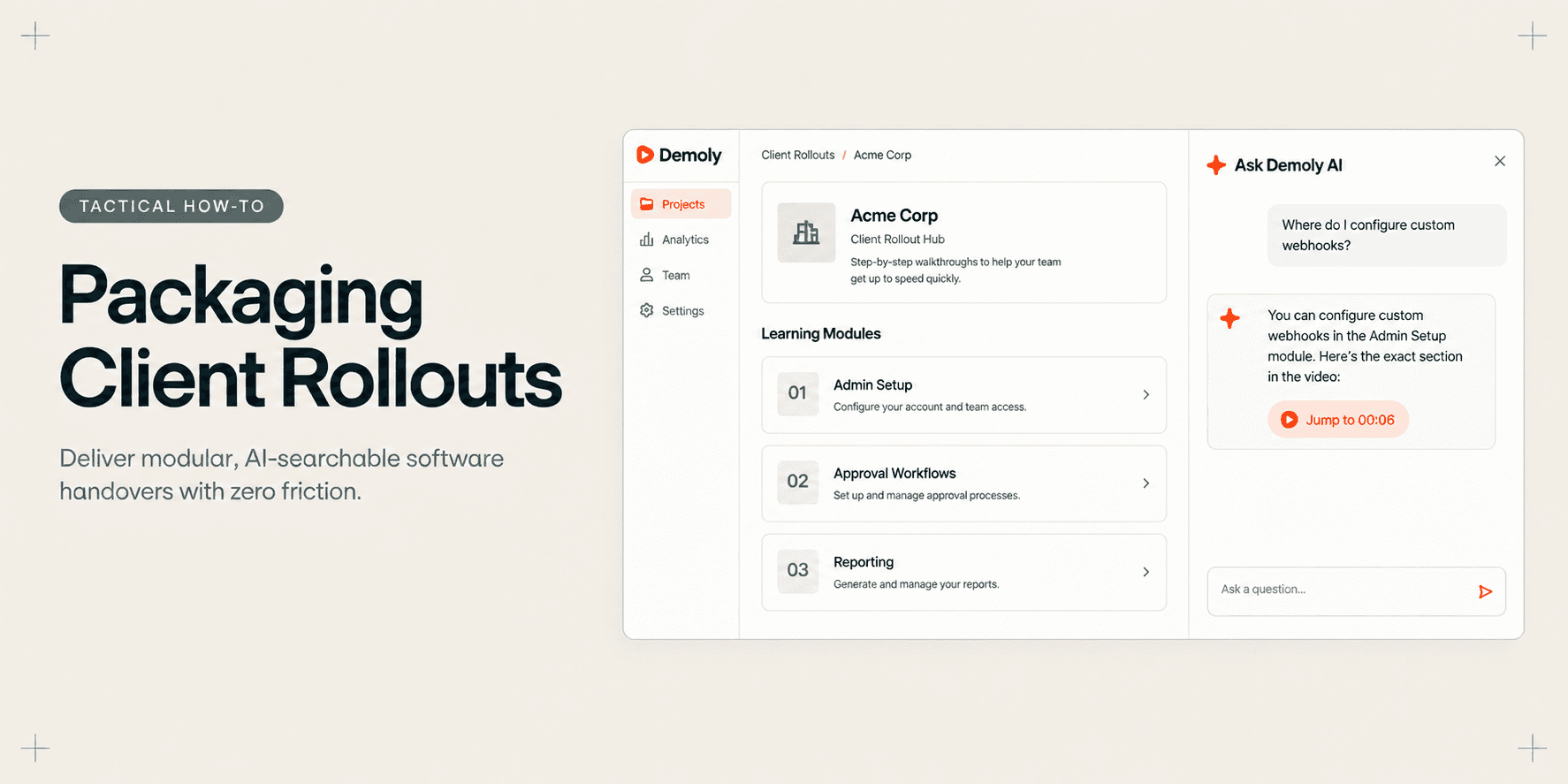
How Implementation Consultants Package a Rollout for a New Client
Learn how enterprise implementation consultants package software rollouts into modular, AI-searchable walkthroughs that eliminate post-go-live hypercare calls.
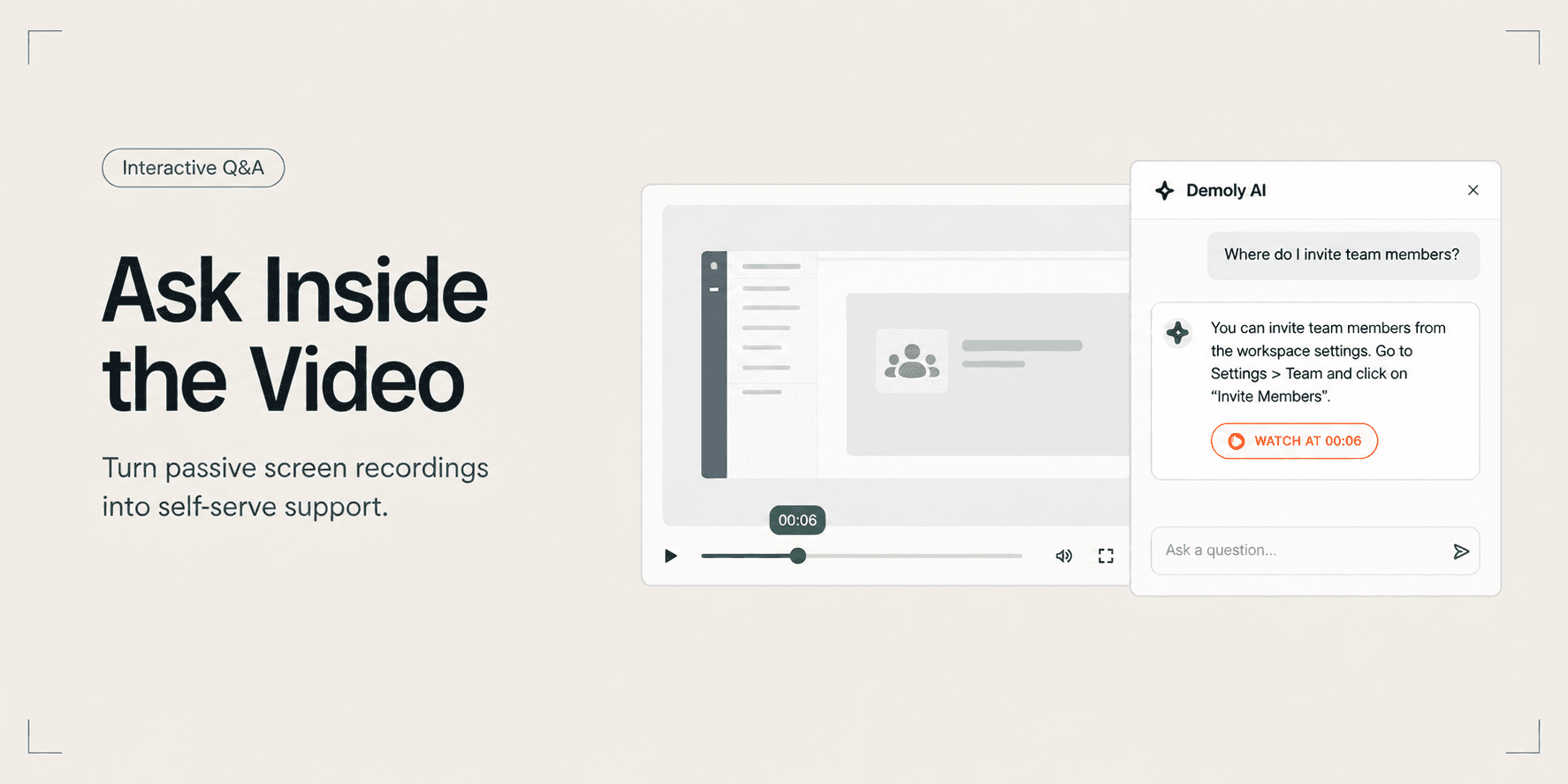
How to Let Clients Ask Questions Inside a Video Walkthrough
Learn how to turn static screen recordings into self-serve support hubs where clients can query features, locate settings, and jump directly to exact timestamps.
How to Search Inside a Video Recording Using AI
Learn how to search inside video recordings using conversational AI. Query spoken words, unvoiced clicks, and on-screen UI elements to jump directly to exact timestamps.
Try Demoly for your team
Create branchable, interactive demo recordings and deliverables in minutes with zero friction.